 The dentist’s referral ally.
Getting Started with DDSALLY
A step-by-step guide for dental offices: creating your account, setting up your team, connecting with other practices, sending referrals with imaging, and messaging securely.
1. Creating your practice account
There are two ways to join DDSALLY: accept an invitation from a practice that already uses it, or sign up directly.
1a. Signing up from an invitation (recommended)
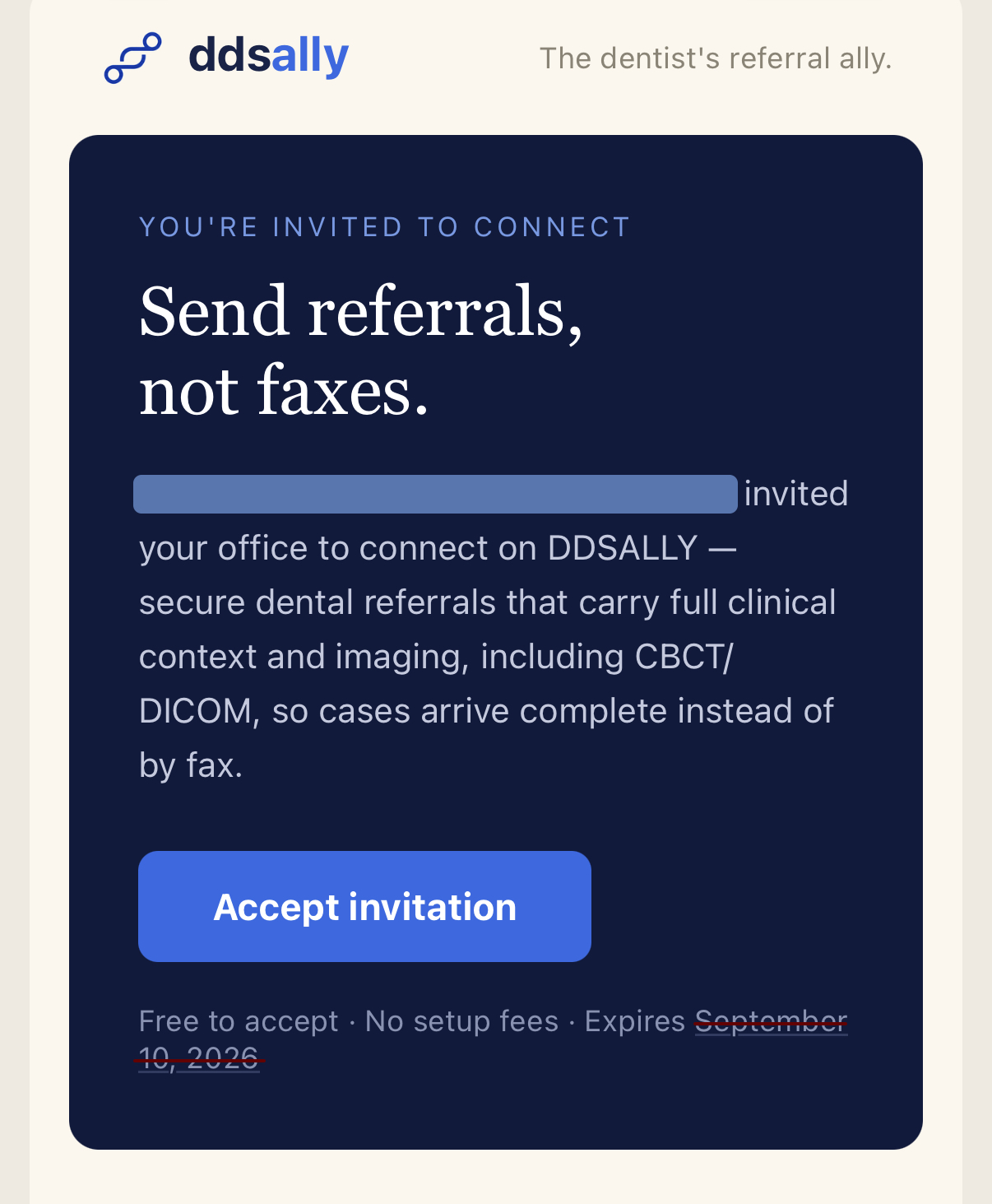
If a colleague’s office invited you, you will receive an email from DDSALLY with an invitation link.
- Open the invitation email and click Accept invitation. The link opens the DDSALLY signup page with your inviting practice already recognized.
- Complete the signup form: your practice name, practice type (general practice or specialty), your practice NPI, and the administrator’s name, email, and password.
- Click Create account. Because you arrived through an invitation, your practice is automatically connected to the inviting office — you can receive referrals from them immediately.
- It is important to have at least one team member with a provider status (usually a dentist or RDH). You may do that by editing the office info and adding a provider status in addition to the Admin, or by inviting a practitioner working in the office to join the office team as a Provider.
1b. Signing up directly
- Go to ddsally.com and click Get Started on the upper right corner of the page.
- Fill in the same practice details — practice name, type, NPI, and administrator account information — and create your account.
After signing in, connect with the offices you work with (Section 3) — referrals can only be exchanged between connected practices.
2. Adding office members and managing roles
Each person in your office gets their own login under the practice account. There are three roles, and a member can hold more than one:
2a. Inviting a new office member
- Go to Team in the left menu.
- Click Invite member, enter their email, and check the role or roles they should have.
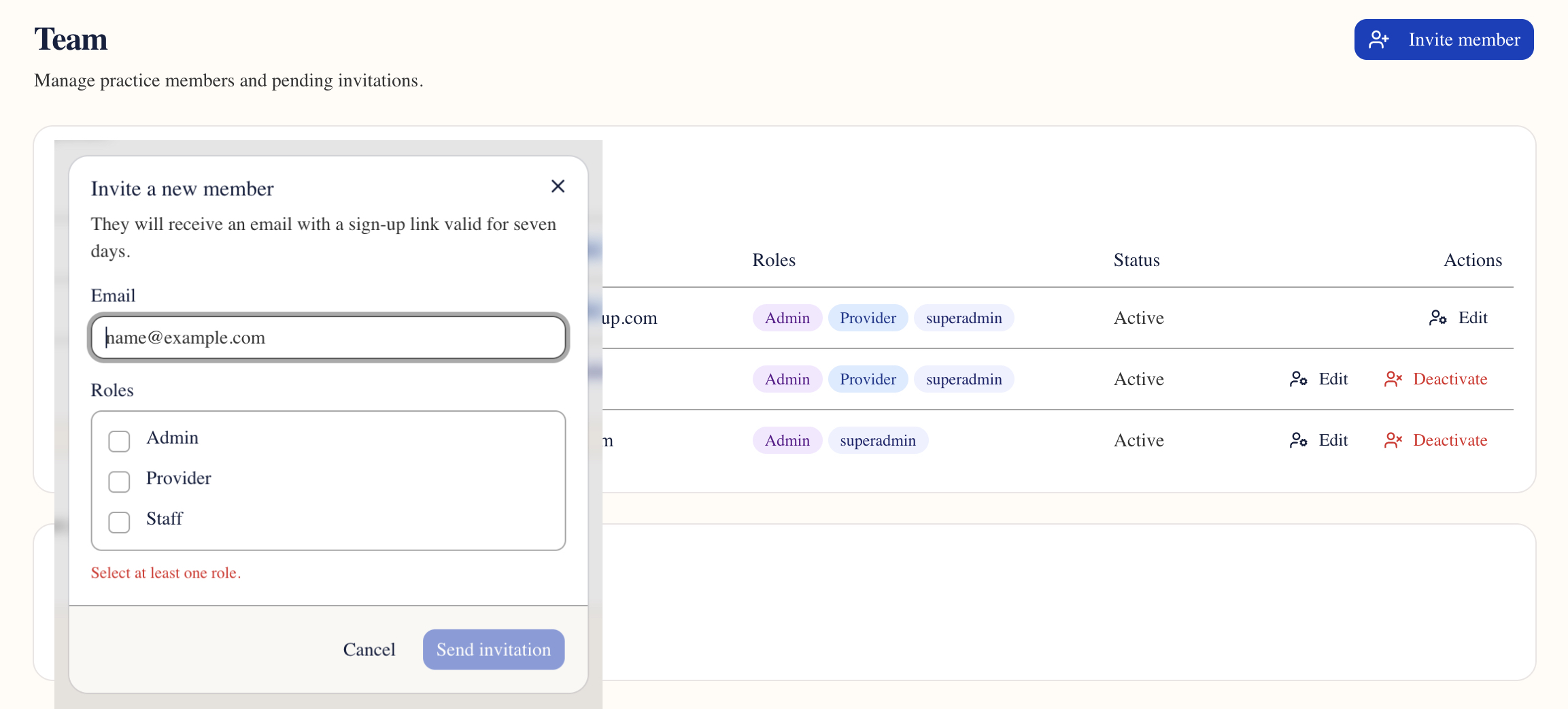
- They receive an email invitation; accepting it creates their personal login under your practice.
2b. Changing or adding a member’s role
- On the Team page, find the member and click Edit.
- Check or uncheck roles as needed — for example, adding Provider to a doctor who was set up as Staff — and save. The change takes effect immediately.
3. Finding a specialist — or inviting one
Referrals flow between connected practices. Connecting is a one-time step per office.
3a. If the office is already on DDSALLY
- Go to Connections and click Find practice.

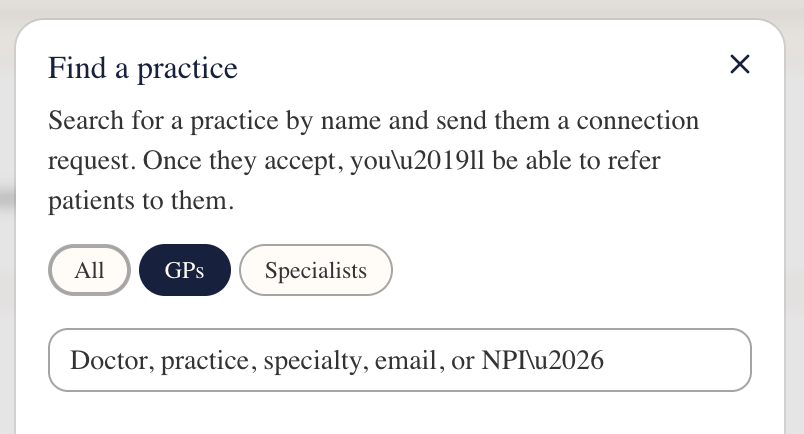
- Search by doctor’s name, practice name, specialty, office email, or NPI number, then send a connection request. Once the other office accepts, you can refer to each other.
3b. If the office is not on DDSALLY yet
- On the Connections page, click Invite office and enter the office’s email address.
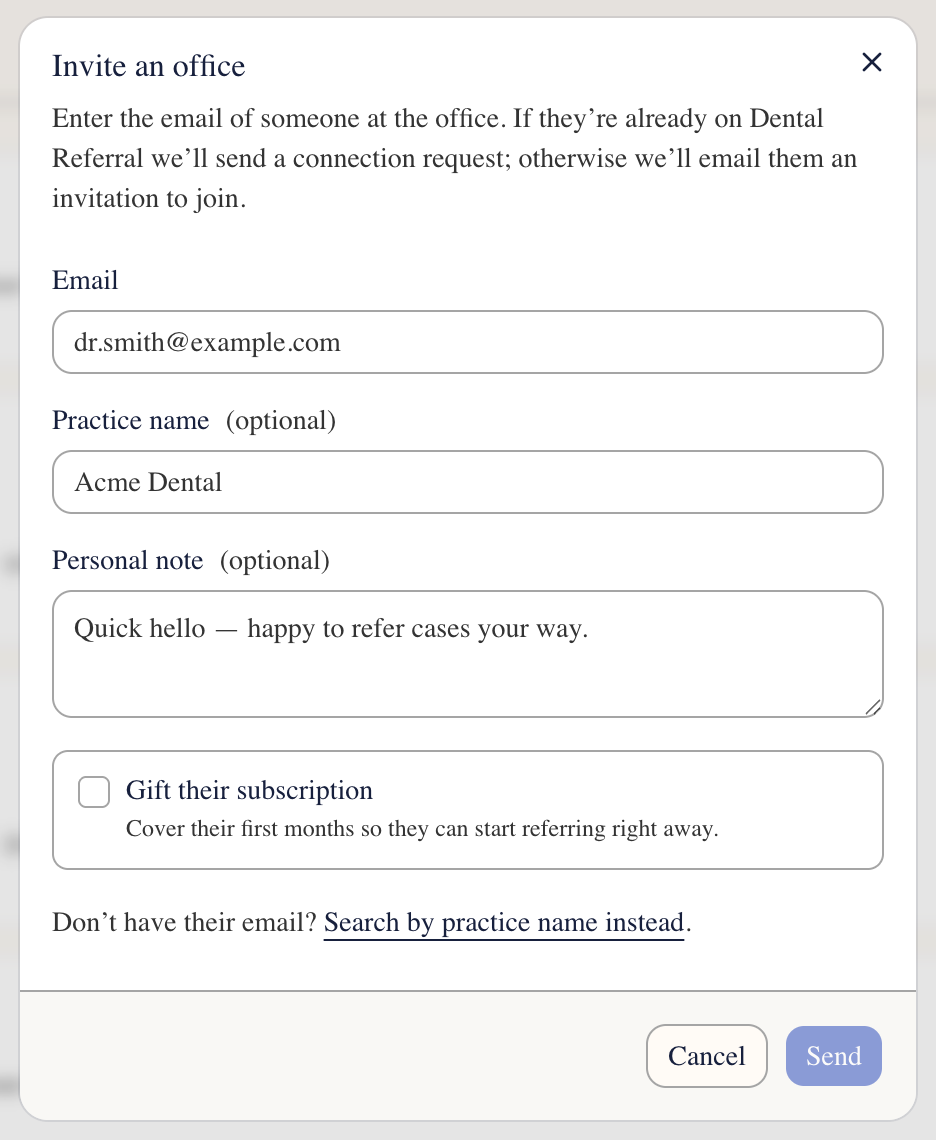
- They receive an invitation; when they sign up through it, the connection to your practice is created automatically (Section 1a).
4. Sending a referral
- Go to Referrals and click New referral.
- Choose the receiving practice from your connections, and the provider if known.
- Enter the patient’s details. If you include the patient’s email address, DDSALLY automatically sends the patient a courtesy email when the referral goes out and another when the specialist accepts it — so the patient knows what is happening without a phone call.
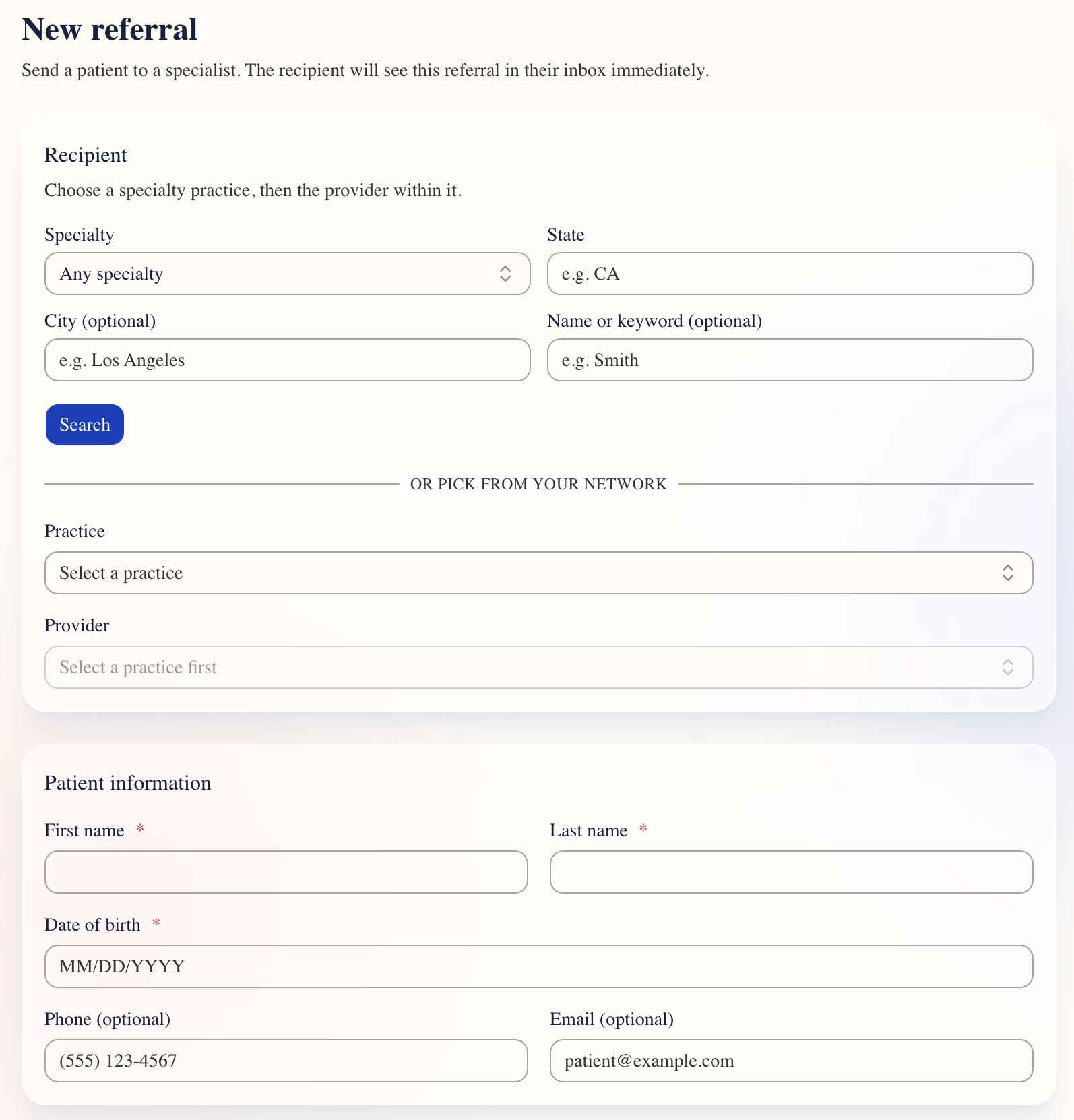
- Describe the reason for referral. Specialty-specific fields appear based on the type of referral.
4a. Attaching images — including CBCT
- In the attachments section, click Add files for individual files — radiographs, photos, PDFs — or Add folder to attach an entire CBCT export straight from your scanner.
A CBCT study is often hundreds of DICOM files in one folder — attach the whole folder and DDSALLY handles it, automatically skipping system junk files. The receiving office views the study in the browser; no CD, no separate viewer install. We recommend compressing all the DICOM files of one study in a single zip file before submission.
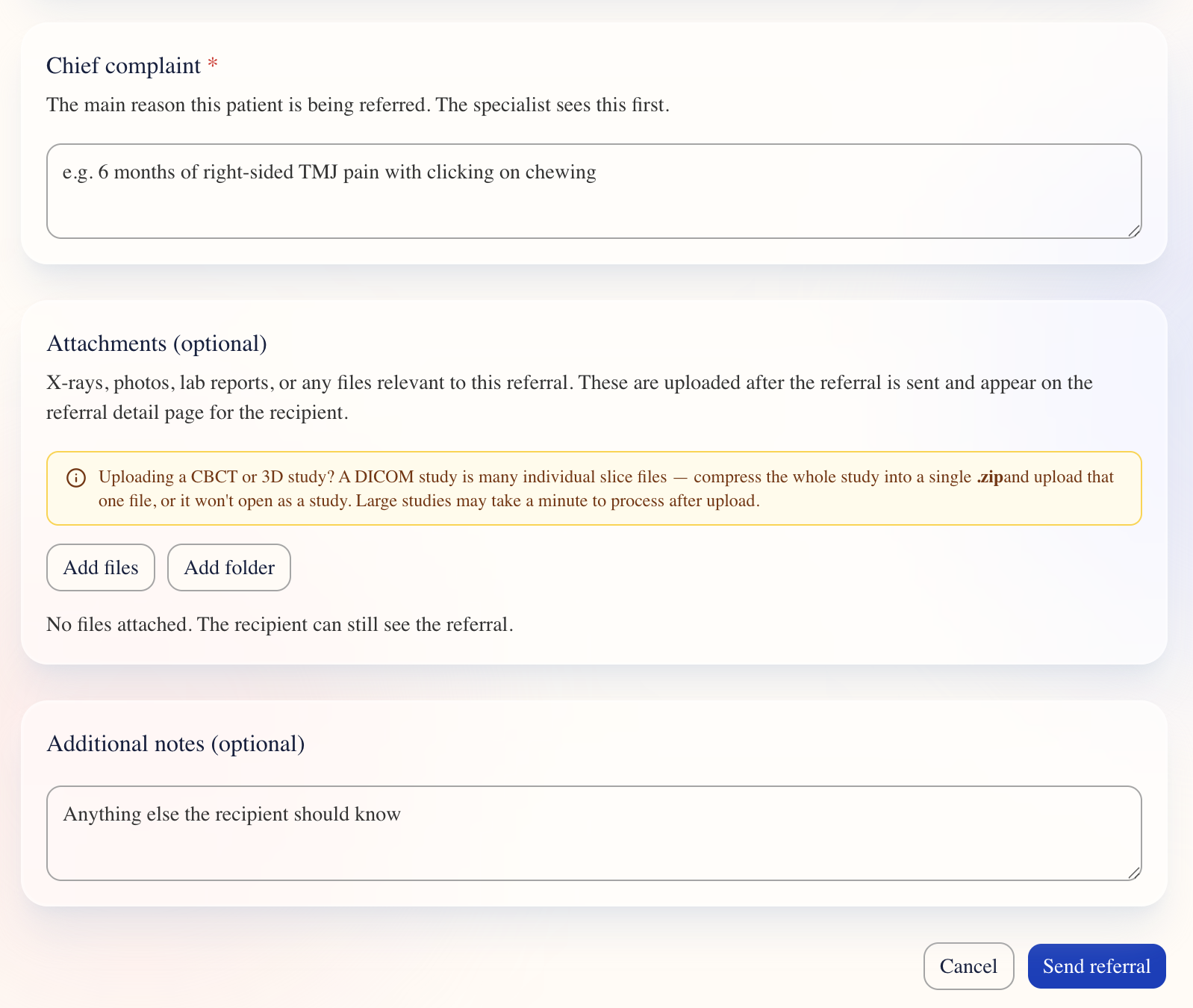
- Click Send referral. Files upload and the receiving office is notified immediately. A referral can also be sent with no attachments at all — images can be added to it later.
5. Chatting with offices in your network
Chatting can be done two ways:
A. Through the referral page
- Go to Referrals.
- Open the referral you want to chat about.
- Find the Chat box.
- Type your message.
- Click Send.
B. Using the Chat tab on the left menu
- Go to Chat and click New.
- Choose a connected office and type your message — a question about a case, scheduling, or a heads-up that a referral is coming.
- Conversations are secure, stay inside DDSALLY, and are shared at the practice level — so the front desk and the doctor both see the thread, and nothing sits in personal email.
6. Using the Messages tool
This is a one-way secure message to contact patients and send them documents and records using a HIPAA-compliant secure messaging system.
7. System requirements
DDSALLY runs entirely in your web browser — there is nothing to install. For referral management and messaging, any current browser on any device works. Viewing 3D imaging studies (CBCT volumes) is more demanding:
- Browser: Google Chrome (recommended) or Microsoft Edge, latest version. Safari 16.4 or newer and current Firefox also work. Hardware / graphics acceleration must be left on (it is on by default).
- Computer: a 64-bit desktop or laptop with at least 8 GB of RAM — 16 GB recommended for large CBCT volumes and 3D rendering. A dedicated graphics card is not required, but recent hardware renders noticeably faster.
- Screen: 1920×1080 or larger is recommended for the four-pane imaging layout.
- Connection: a standard broadband connection. Imaging studies are streamed once and then viewed locally, so day-to-day use is light.
- Mobile: referrals, chat and messages work on phones and tablets; full 3D volume viewing is designed for desktop.
Questions?
Reply to your invitation email or contact support@ddsally.com. Setting up a new office takes about five minutes end to end — and the first referral usually takes less than that.